I made a blog post some time ago, where i created a powerCLI function for creating a VM affinity rule that would keep my VM´s in a vApp together in the cluster for better VM-VM performance. I then checked for MoRef to get the VM correlated between vCloud Director and vCenter.
The answer to my problem was much closer than I thought, the vCloud director creates a folder in the “VM´s and Template view” for each vApp and guess what, all VM´s are in there.. so I do not need to ask the vCloud Director anymore (well if I want the Cloud vApp name I do need to ask it..) but ironically I had not looked there and found out that the folders actually where created for each deployed vCloud vApp :-/
So the code is a bit simpler and to get all VM´s from a folder I just type this, the asterisk is because the folder also gets a unique id
Get-Folder | where {$_.Name -like "ProdvCPod*"} | Get-VM
And then I just need to put those VM´s into an array and create a DRS rule, and here is the function that does this
<#
.Synopsis
   Add an affinity rule for a vCloud Director vAPP
.DESCRIPTION
   This function takes a vApp name (string) as parameter and creates an affinity rule for them to keep them together
.EXAMPLE
   Add-vAppAffinity -CIVApp ProdCust01
.NOTES
Author: Niklas Akerlund
Date: 2012-06-21
#>
function Add-vAppAffinity
{
    Param
    (
        # Parameter for the vAPP
        [Parameter(Mandatory=$true,
                   ValueFromPipelineByPropertyName=$true,
                   Position=0)]
        $CIVApp,

        # If the rule should apply on a different cluster
        $Cluster = "Cluster01"
    	)

	if ($CIVApp -ne " " -or $CIVApp -ne $null -or $CIVApp.length -ne 0 ){
		$Cluster = Get-Cluster $Cluster
		$VAppname = $CIVApp + "*"
		$VMs =  Get-Folder | where {$_.Name -like $VAppname} | Get-VM

		if (!(Get-DrsRule -Cluster $Cluster -Name $CIVApp -ErrorAction SilentlyContinue)){
			New-DrsRule -Name $CIVApp -Cluster $Cluster -KeepTogether $true -VM $VMs
		}else{
			Remove-DrsRule -Rule (Get-DrsRule -Cluster $Cluster -Name $CIVApp) -Confirm:$false
			New-DrsRule -Name $CIVApp -Cluster $Cluster -KeepTogether $true -VM $VMs
		}
	}
}
To run it:
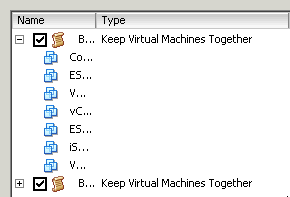
and it looks something like this if I check the cluster settings
preferably you have set your DRS cluster to fully automated or not so much will happen 🙂
Today my adventures continues, I had to test and install the PowerCLI on a Windows 2012 RC to see if it works and also if it could be used in the new Windows 2012 feature PowerShell Webaccess.
In an earlier post I showed how to configure the PowerShell Webaccess, then I was not successful to run the PowerCLI, the difference here is that I now installed the PowerCLI on the Win 2012 server.
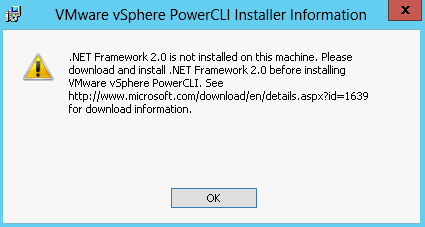
To be able to install i had to enable the .net 2.0 (why the PowerCLI is built on that version is another discussion we will not go into here), as you can see on the dialog I had to enable that
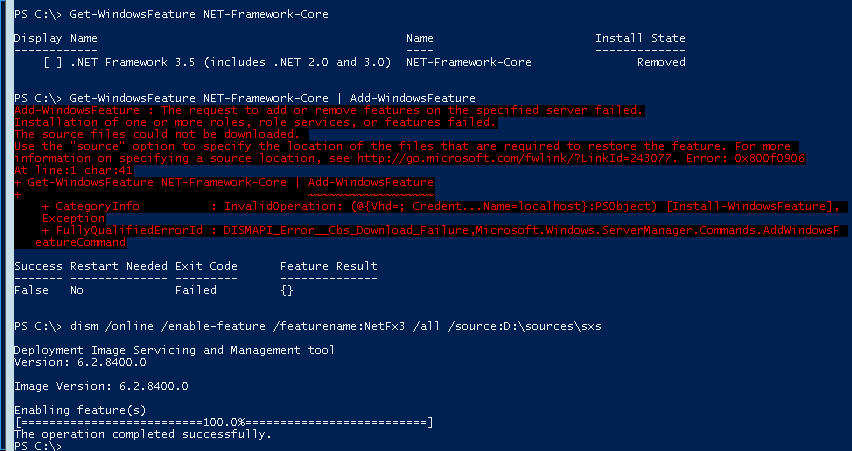
Ok, and that should be done with PowerShell or? My server did not have an active Internet connection so I got a failure when trying to enable the .Net Framework, I had to use the Dism tool with the install media to get the .Net installed as it otherwise downloads the files necessary from MS.
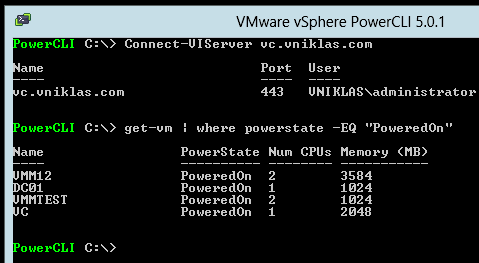
When this is enabled then there was no problem installing the PowerCLI and when installed I can use for example the V3 functions Get-VM | where powerstate -eq “PoweredOn” <- notice I am not using any curly brackets and $_
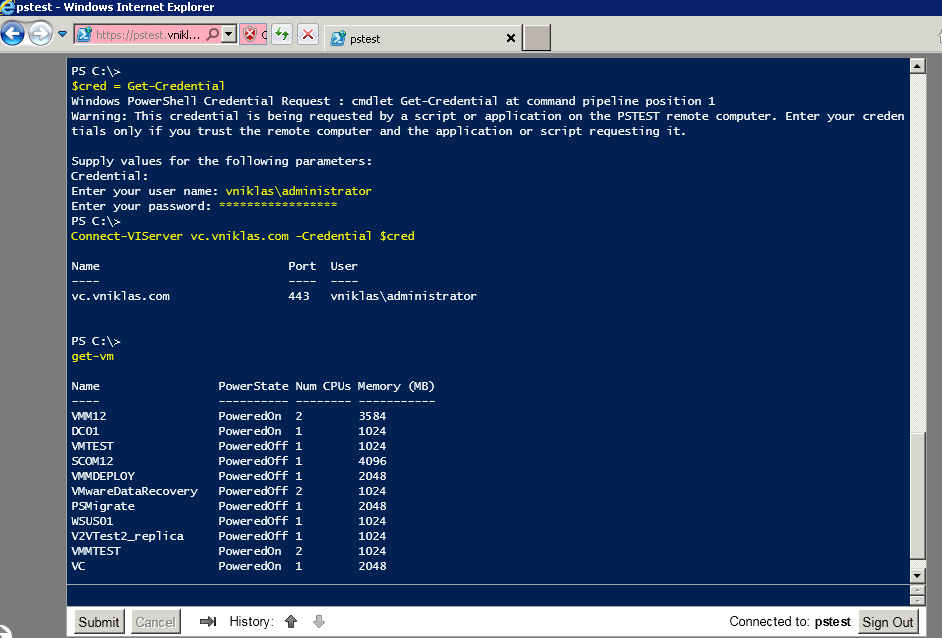
Now to the Webaccess, I connect to the site https://pstest.vniklas.com/pswa and log on with an authorized account. After that I run Add-PSSnapin VMware.VimAutomation.Core to enable the PowerCLI functionality . Then i need to get the credential before connecting to the vCenter because the pswa could not show the promt for credential.
But that is easily fixed by using $cred = Get-Credential and then Connect-VIServer vc.vniklas.com -Credential $cred 🙂 and as you can see I can now connect and use the PowerCLI in a web browser.
This week I have been teaching my first vSphere 5 ICM, I have been trying to show the students the wonderful world of PowerCLI and all good you can do with it.
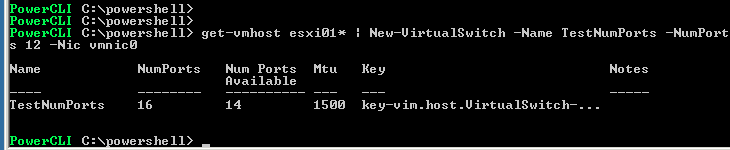
When we got to the virtual networking I tested if I could add a switch with any number of ports
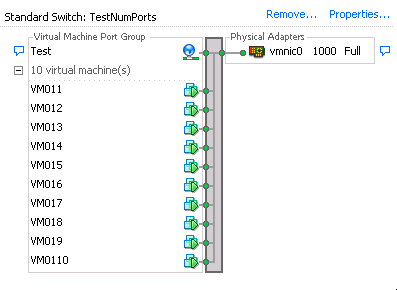
When I try to add 12 ports with the -NumPorts parameter, powerCLI tells me that my switch has been created with 16 ports, but look here in my vSphere Client screen dump
hmm smells like a bug? or ?
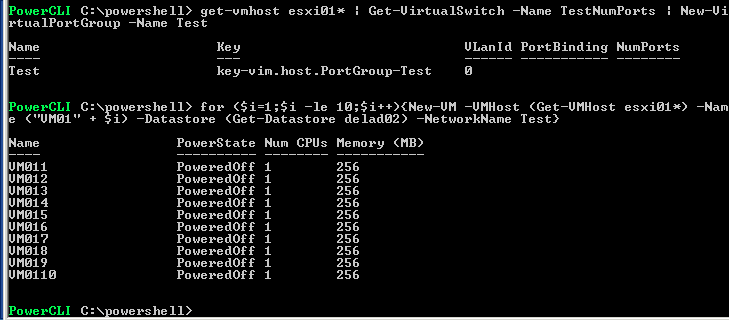
Well now I wanted to test if I could add more than 4 VM´s and connect them and then start them, first I have to create a Portgroup that i can connect and then a nice for loop to create 10 VM´s
The last oneliner creates a standard VM with 256 MB ram and a 4 GB vmdk disk, and then I want to start them to actually connect them to the network I created to see if anyone of them does not get connected.
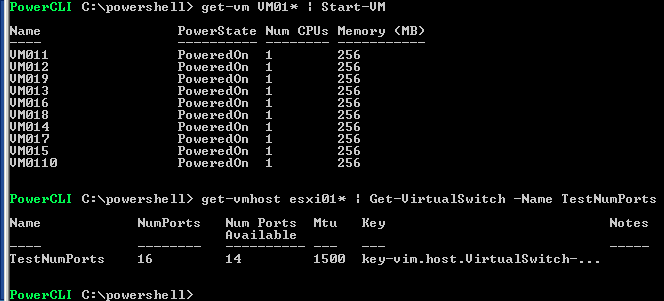
So to get them connected I start them
And check the last command where we can see that my number of available ports has not decremented?
Here you can see in the vSphere client that all my new VM´s are connected to the Test portgroup
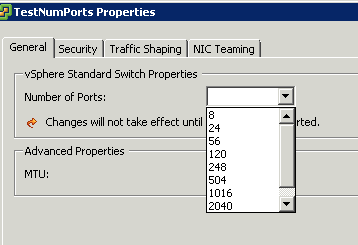
In this screenshot you can see why my vSwitch got 16 ports (as 8 are allocated by the vmkernel) and the options are 8/24/56/120/248/504/1016 and so on, but still it does not explan why the powercli does not show that i have used 10 of the ports, or?
To see maybe what causing this I changed the number of ports to one of the “allowed” and when I changed the number to 16 ports, directly my free ports changed to 4, but I have 10 machines + 8 reserved?
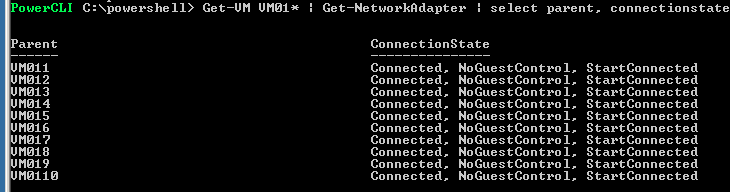
The following powerCLI command shows the VM´s and if they are connected if you do not believe the gui 😉
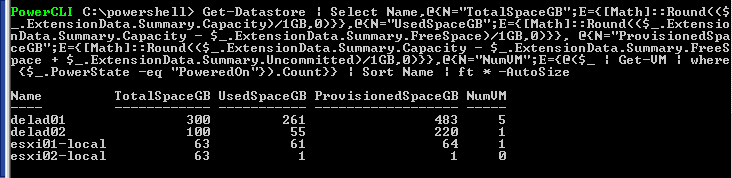
Today I had an reason for running PowerCLI again, the case was to get an quick report on the datastores at a customer, I have made a post about the one-liner that get the number of running VM´s on a datastore. As i described in that post, if your SAN does not support VAAI then you do not want to many VM´s on each datastore because of the SCSI-locking that can occur. This is just an extension of that because we also wanted to check how overprovisioned the datastores was (when using thin provisioning there is a risk that you will fill your datastores as the VM´s fill their vmdk disk´s)
To fully utilize the performance in a vApp in vCloud Director I got the task to create an affinity rule based on the VMs in the vApp. This can be the case for example when you have VMs in an vApp that exchange high loads of data. In our case we have virtual ESXi Servers that have a vsa for shared storage and need good performance when deploying VM´s and storage vMotion etc.
When deploying several vApps from the same template it is not just to run Get-CIVM and then use the VM name returned to run Get-VM for the correlation between the VM in VCD and in vCenter, as you can see in the screendumps these two have the same name but followed with an identifier from vCD in the vSphere Client. This is also described in the vSphere blog.
The fine part is that the MoRef is unique (in the relation one vcd <-> one vcenter) so I can check on that which VMs in the vCenter belongs to the same vCloud Director vApp.
<#
.Synopsis
   Add an affinity rule for a vCloud Director vAPP
.DESCRIPTION
   This function takes a vApp as parameter and creates an affinity rule for them to keep them together
.EXAMPLE
   Add-CIVAppAffinity -CIVApp Green01
.NOTES
Author: Niklas Akerlund / RTS
Date: 2012-05-03
#>
function Add-CIVAppAffinity
{
    Param
    (
        # Parameter for the vAPP
        [Parameter(Mandatory=$true,
                   ValueFromPipelineByPropertyName=$true,
                   Position=0)]
        $CIVApp,

        # If the rule should apply on a different cluster
        $Cluster = "vCD-Cluster"
    )

	$pod = Get-CIVapp $CIVApp
	if ($pod){
		$PodVMs = Get-CIVM -VApp $pod
		$VMs = @()
		$Cluster = Get-Cluster $Cluster
		Foreach ($PodVM in $PodVMs) {
			$VMname = $PodVM.Name + "*"
			$VM =  Get-VM $VMname | where {$_.ExtensionData.MoRef.Value -eq $PodVM.ExtensionData.VCloudExtension[0].Any[0].VmVimObjectRef.MoRef}
			$VMs +=$VM
		}

		if (!(Get-DrsRule -Cluster $Cluster -Name $pod.Name -ErrorAction SilentlyContinue)){
			New-DrsRule -Name $pod.Name -Cluster $Cluster -KeepTogether $true -VM $VMs
		}else{
			Remove-DrsRule -Rule (Get-DrsRule -Cluster $Cluster -Name $pod.Name) -Confirm:$false
			New-DrsRule -Name $pod.Name -Cluster $Cluster -KeepTogether $true -VM $VMs
		}
	}
}
And when checking the cluster i can see that my DRS affinity rule has been created and the VMs have been migrated to the same host
It is not so extensive but it helps us with the case to create DRS affinity on the VMs in a particular vApp 🙂 , The Rule is deleted when the vApp is removed, I have an extra check in the script and remove it if it still exist of some reason.
I am one of the lucky to be awarded as this year VMware vExpert.
As described by the application for VMTN vExpert:
The annual VMware vExpert title is given to individuals who have significantly contributed to the community of VMware users over the past year. The title is awarded to individuals (not employers) for their commitment to sharing their knowledge and passion for VMware technology above and beyond their job requirements.
My focus has been on automation and I try to share my findings in PowerCLI, and of course in other areas too.
I did see that a new version of VMware Fusion has been released as a technology preview and in the release notes I could find that it was possible to run ESXi host-vm with nested 64 bit VM´s in. Of course I had to test and see if I also could get a new Windows 2012 (8 beta) with Hyper-V role enabled and running.
There was some problems that had to be adressed before I got it working, google and help from fellow IT-neerds that had done the same in VMware Workstation solved my problems. And yes it is actually usefull, because I can run a test environment on my Apple laptop to test/demo things 🙂
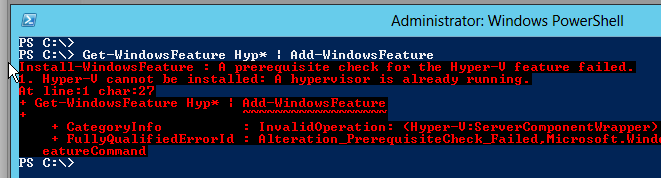
After a clean install i got this error when trying to enable
I had to add these lines to the vmx file inside the VM package
hypervisor.cpuid.v0 = FALSE
vhv.enable = TRUE
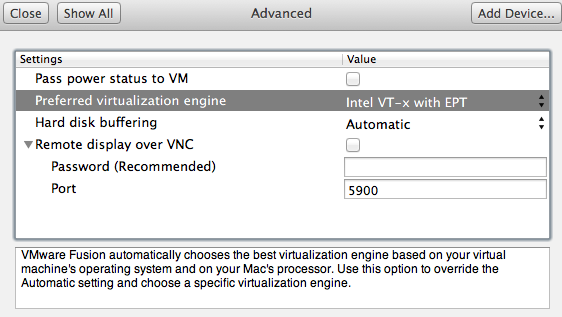
I also manually set the preferred virtualization engine to Intel VT-x with EPT
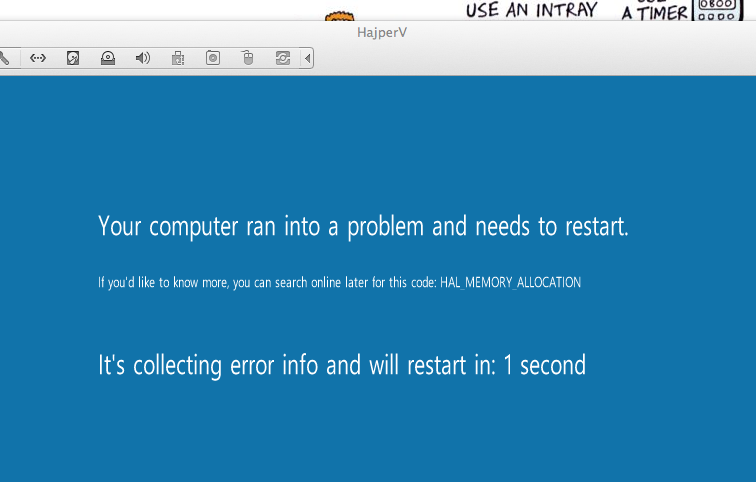
Then i could add the Hyper-V role, but when rebooting i got a nice new kind of blue screen with the error HAL_MEMORY_ALLOCATION.
That was solved with the following line in the vmx file, I have no idea what it means exactly but it has to be something with the memory allocation,
mce.enable = TRUE
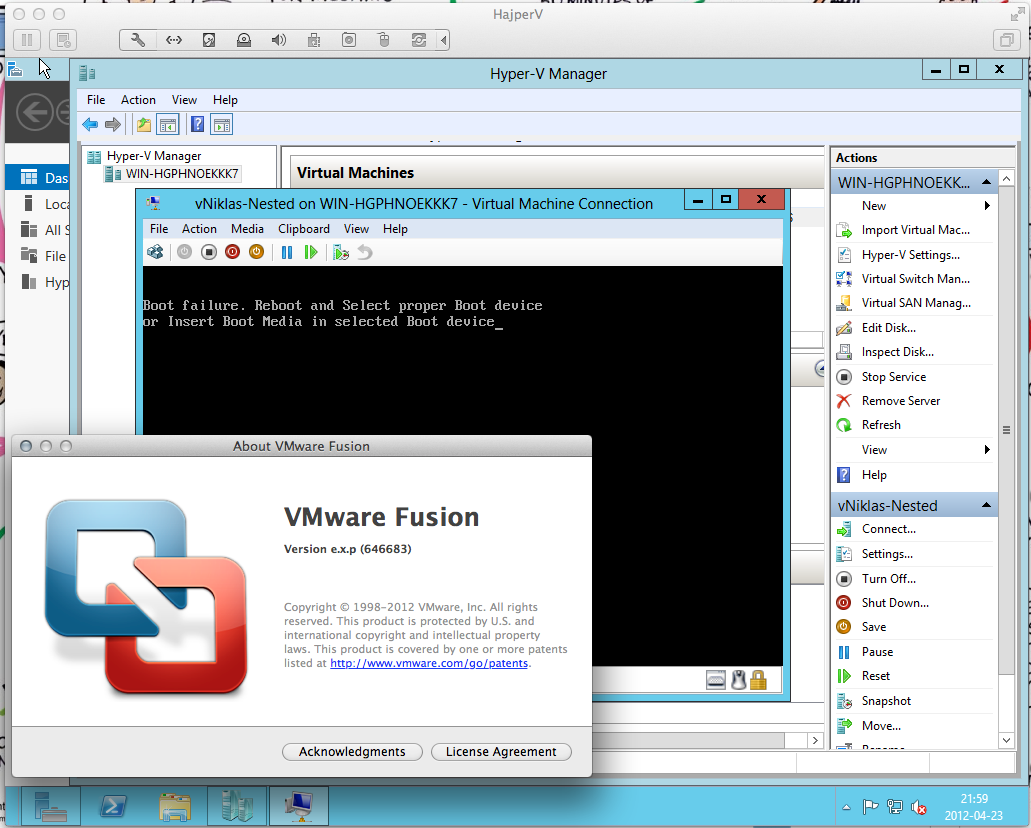
Here you can see my screendump on my Hajper-V VM with a Hyper-V VM running inside it 🙂
I have not installed VMware tools in the host, this because when enabling the Hyper-V role the OS that is installed becomes an Parent VM, so the tools will not be utilized on the Fusion VM´s hardware.
The new version has some features that is nice, both the replication function and the FLR with iSCSI target can be useful, not to forget the OpenExport and OpenRestore, where you can restore your VM´s to hosts without PHD Virtual Backup sw as they are exported as OVF and can easily be imported into other hosts.
Here is a list of some of the features
vSphere Client integration
Support for Changed Block Tracking (CBT)
Export Virtual Machine Backup
Virtual Machine Replication
Application Consistent Backup using VSS (Windows only)
Application Object level recovery
OpenExport & OpenRestore
E-mail notification
Support for Thin Provisioned Disks
Backup Retention and Archiving
Distributed Virtual Switch Support
Supports all Operating Systems supported by VMware vSphere
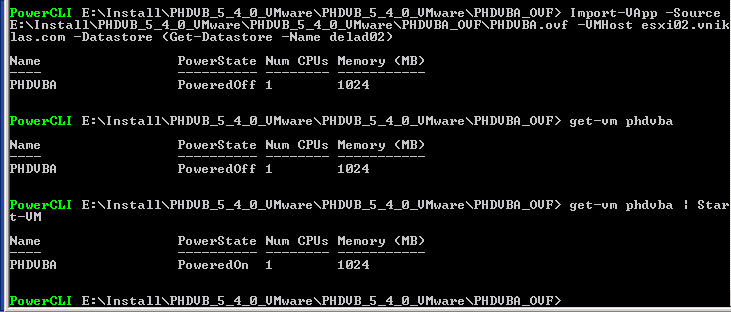
The installation of the product is as easy as VMware Data Recovery, you download and extract the OVF and import it into your environment, as I do things with PowerShell/PowerCLI I can use Import-VApp cmdlet
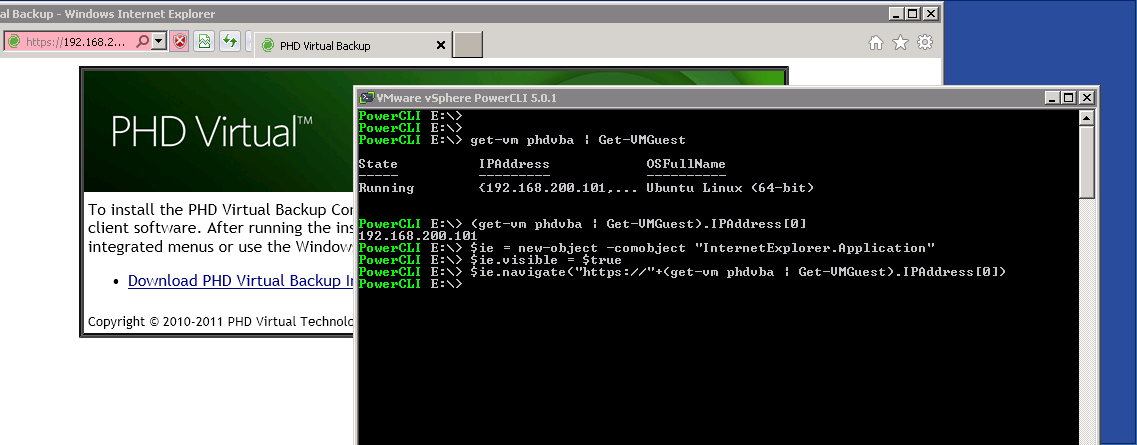
When I then want to install the vSphere Client plugin I can browse the web-service on the appliance and that way get the sw, It is also on the extracted folder you got from the download, but of course you can get the IP adress of the appliance and open an IE window from powershell 😉
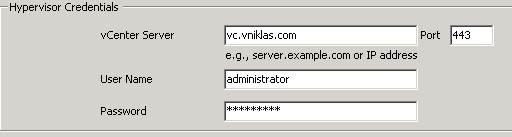
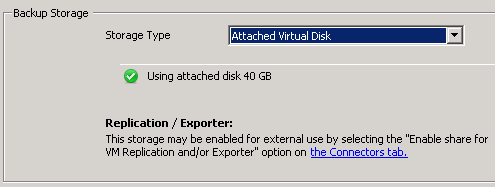
Once installed I need to set up a backup storage and credentials for my vCenter ( If you want you can just enter the ip/fqdn for your ESXi host)
For backup storage i can choose, attached disk/NFS or CIFS share. The most important thing here is that you think this through where you place your backup data, you do not want to put your backups in the same datastores as your VM´s because if you have a SAN-failure you want to be able to restore :-). One thing I want is to be able to use more than one disk but it is not possible in the PHD VBA in this version.
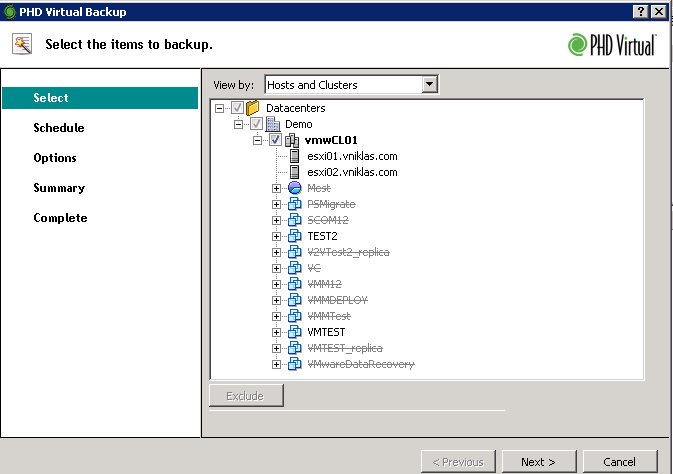
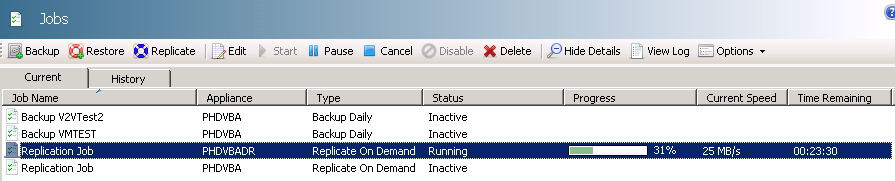
You can then go ahead and start taking backup. Either you can choose the whole datacenter or cluster or just VM´s, the nice part here is that you can select a Host cluster and exclude the VM´s that you not want to take backup on and when doing like this, new VM´s that are added later are automatically added to the backup job.
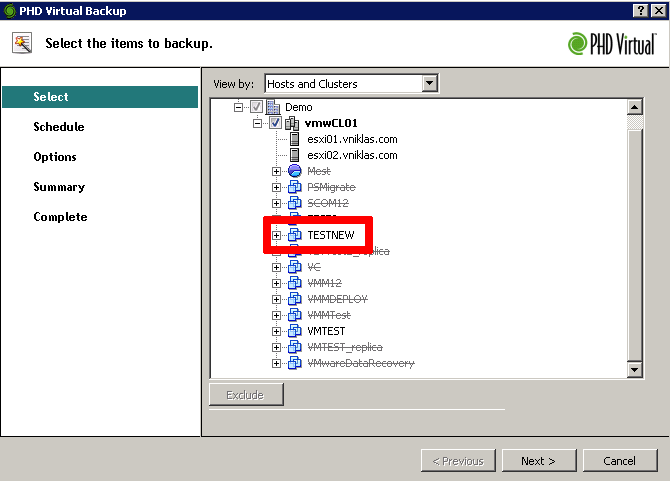
Here you can see that when I later add the TESTNEW VM it is automatically added to the backupjob
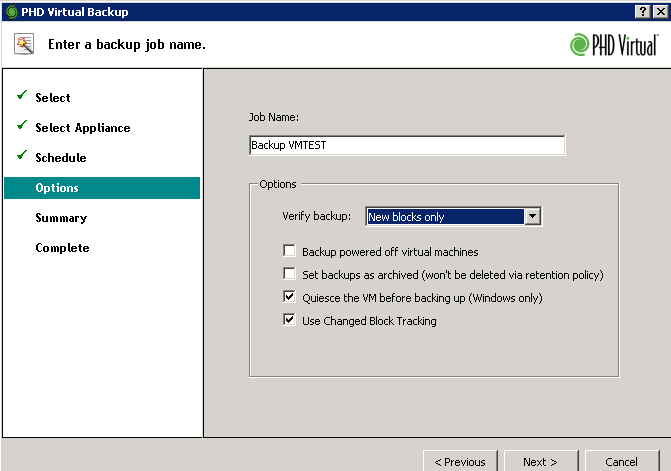
I can use the functionality quiesce VM to get a consistent snapshot for my backup, then my windows applications (that are VSS aware) will be in a good state to take backup, this is not possible to do with other OS (for example Linux), so think a bit if this is enough for your VM´s, maybe you must have an backup solution that uses an agent inside the VM also?!
For the replication functionality I can add an secondary PHD VBA that is on a DR site and it is configured to use the backup store of the first VBA so I will not need to create more than one VM snapshot for both backup and replication. When i fail-over the VM to the backup-site no more replication will occur and i can then start replicating it back when the primary site is back online.
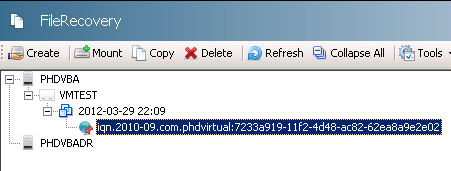
To do File-level restore you select the VM and the backup date and click create, this will create an iSCSI target that you can connect to and get the data that you want restored. To get application level restore you will have to do the same thing and then connect the database etc in recovery-mode.
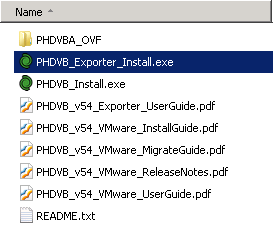
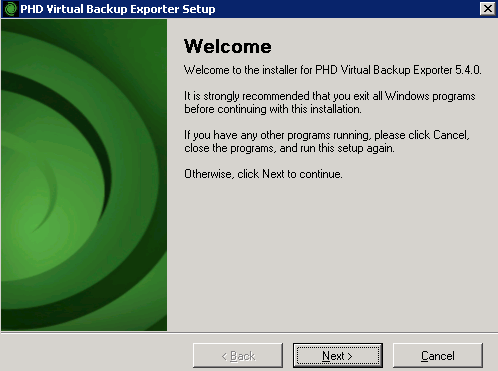
To get the OVF´s in OpenExport function you have to install the PHDVB_Exporter sw, PHD recommend you to install it on a physical machine, but it is supported to install in a VM also.
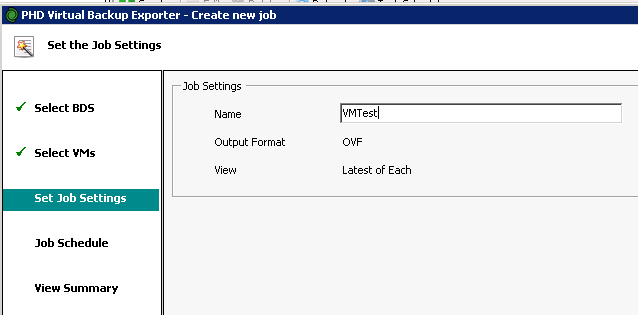
When you have installed it, you have to configure a location for the exported VM´s, also you need to configure where the PHD VBA appliance backups are. When that is done you can continue to create an export job. The export of the backups are set to use the latest backup, this isn not anything I can change in this version.
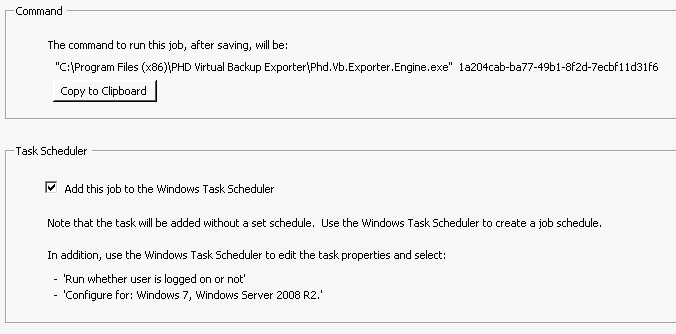
One thing i wish for in the next release is that they fix the scheduling, as of now when the export job is finished it create a task in the scheduled task manager and there you have to configure that it can run without logged on and when it should run, this should be in the gui of the Export software.
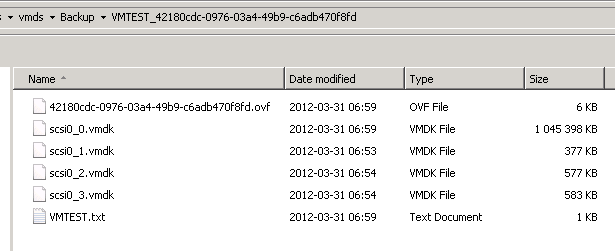
When checking the export directory you can see that the OVF and the vmdk files are there, ready to be imported or backed up by a tape.
Conclusion
What do we need and why is the question when choosing the backup solution. When is Host level backup software enough and when do we need agents in our VM´s? If you decided that Host level backup solution with snapshot technology is enough on your virtualization platform I would say that the reasons for using PHD instead of the VMware Datarecovery are the replication function, File Level restore via iSCSI and the Export to OVF. Also the possibility to set an backup to archive that will exclude that VM backup will be deleted by the retention policy is a powerfull feature for example regulatory reasons. The VMware Data Recovery also require the vCenter and in some cases you maybe do not have that or want to connect to it.
As always ( or at least in my world) you should do everything in powershell/powerCLI. Now the turn comes to handling licensing in VMware vSphere.
I searched the web and found some information from Luc Dekens post and from Joe Keegan post. I also used the Onyx VMware fling to get some more functionality.
I decided to do some powershell functions and came up with the following, I have created three functions that can do some magic with your licenses
Get-vLicense – query the vCenter for licenses
Add-vLicense – add a license or assign an existing license to a host/vCenter
Remove-vLicense – remove a license that is not in use
Of course there might be other things regarding licensing i have forgot but see this as a version 0.1 and that you can give me input on what to add or change
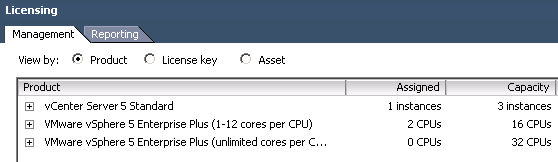
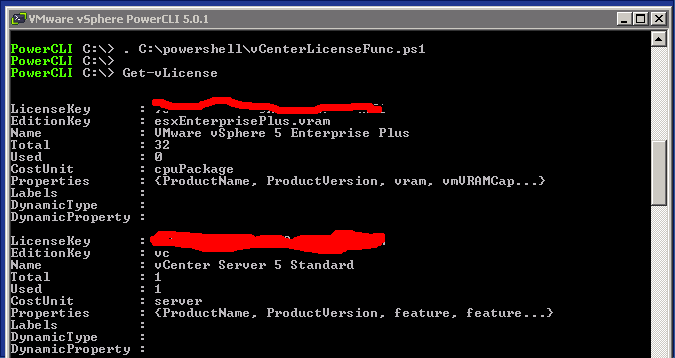
Here you can see how the function get the information:
You have to bare with me and my paintbrush skills, but I cannot show my license keys on the Internet 🙂
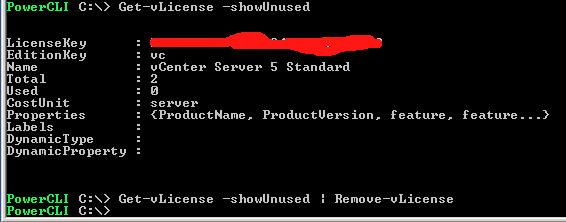
I can also use a switch to just show the ones that are not used with
Get-vLicense -showUnused
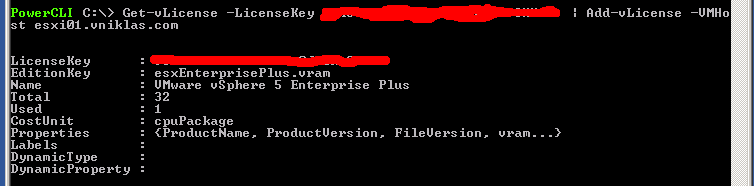
I would like to move my hosts to the new license that i have that has unlimited cores
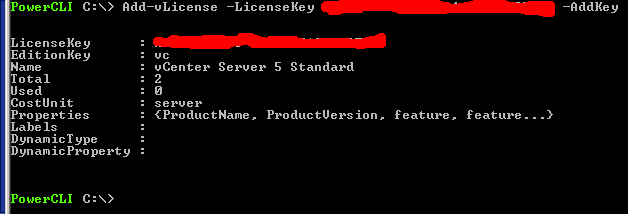
I can also in the Add function just add without assigning the license right now just use the -AddKey switch
And if I want to remove the unused license I use the following function, It can utilize a pipeline parameter as you see
And here is the whole code for the functions:
function Get-vLicense{
<#
.SYNOPSIS
Function to show all licenses  in vCenter

.DESCRIPTION
Use this function to get all licenses in vcenter

.PARAMETER  xyz

.NOTES
Author: Niklas Akerlund / RTS
Date: 2012-03-28
#>
	param (
		[Parameter(ValueFromPipeline=$True, HelpMessage="Enter the license key or object")]$LicenseKey = $null,
		[Switch]$showUnused,
		[Switch]$showEval
		)
	$servInst = Get-View ServiceInstance
	$licenceMgr = Get-View $servInst.Content.licenseManager
	if ($showUnused -and $showEval){
		$licenses = $licenceMgr.Licenses | where {$_.EditionKey -eq "eval" -or $_.Used -eq 0}
	}elseif($showUnused){
		$licenses = $licenceMgr.Licenses | where {$_.EditionKey -ne "eval" -and $_.Used -eq 0}
	}elseif($showEval){
		$licenses = $licenceMgr.Licenses | where {$_.EditionKey -eq "eval"}
	}elseif ($LicenseKey -ne $null) {
		if (($LicenseKey.GetType()).Name -eq "String"){
			$licenses = $licenceMgr.Licenses | where {$_.LicenseKey -eq $LicenseKey}
		}else {
			$licenses = $licenceMgr.Licenses | where {$_.LicenseKey -eq $LicenseKey.LicenseKey}
		}
	}
	else {
		$licenses = $licenceMgr.Licenses | where {$_.EditionKey -ne "eval"}
	}

	$licenses
}

function Add-vLicense{
<#
.SYNOPSIS
Add New Licenses to the vCenter license manager

.DESCRIPTION
Use this function to add licenses  and assing to either the vcenter or the hosts

.PARAMETER  xyz

.NOTES
Author: Niklas Akerlund / RTS
Date: 2012-03-28
#>
param (
	$VMHost ,
	[Parameter(ValueFromPipeline=$True)]$License = $null,
	[string]$LicenseKey = "XXXXX-XXXXX-XXXXX-XXXXX-XXXXX",
	[switch]$AddKey
    )
	$LicenseMgr = Get-View -Id 'LicenseManager-LicenseManager'
	$LicenseAssignMgr = Get-View -Id 'LicenseAssignmentManager-LicenseAssignmentManager'
	if($License){
		$LicenseKey = $License.LicenseKey
		$LicenseType = $LicenseMgr.DecodeLicense($LicenseKey)
	}else{
		$LicenseType = $LicenseMgr.DecodeLicense($LicenseKey)
	}

	if ($LicenseType) {
		if ($AddKey){
			$LicenseMgr.AddLicense($LicenseKey, $null)
		}else{
			if ($LicenseType.EditionKey -eq "vc"){
				#$servInst = Get-View ServiceInstance
				$Uuid = (Get-View ServiceInstance).Content.About.InstanceUuid
				$licenseAssignMgr.UpdateAssignedLicense($Uuid, $LicenseKey,$null)
			} else {
				$key = Get-vLicense -LicenseKey $LicenseKey
				if($key  -and ($key.Total-$key.Used) -lt (get-vmhost $VMHost | get-view).Hardware.CpuInfo.NumCpuPackages){
					Write-Host "Not Enough licenses left"
				} else{
					$Uuid = (Get-VMhost $VMHost | Get-View).MoRef.Value
					$licenseAssignMgr.UpdateAssignedLicense($Uuid, $LicenseKey,$null)
				}
			}
		}
	}
}


function Remove-vLicense{
<#
.SYNOPSIS
Function to remove a licenses that is not in use in vCenter

.DESCRIPTION
Use this function to remove a license

.PARAMETER  xyz

.NOTES
Author: Niklas Akerlund / RTS
Date: 2012-03-28
#>
param (
	[Parameter(Position=0, Mandatory=$true, ValueFromPipeline=$True, HelpMessage="Enter the key or keyobject to remove")]$License
	)
	$LicObj = Get-vLicense $License
	if($LicObj.Used -eq 0){
		$LicenseMgr = Get-View -Id 'LicenseManager-LicenseManager'
		$LicenseMgr.RemoveLicense($LicObj.LicenseKey)
	}else{
		Write-Host " The license is assigned and cannot be removed"
	}
}
Today I wanted to update my lab environment hosts to U1 of vSphere 5, of course with PowerCLI, there is no other way or is it?
This reference indicates there is not so many cmdlets but is it enough? Yes it is!
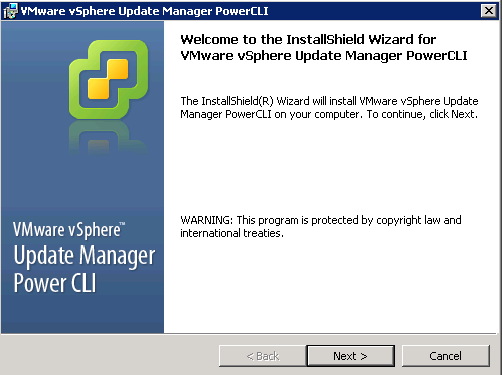
As the PowerCLI installation does not include the VUM cmdlets i had to download and install them
I have already upgraded my vCenter and VUM to U1, this as it is always a best practice to first update the vCenter and then the hosts
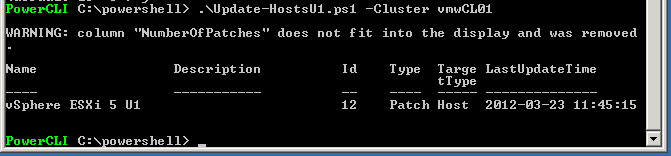
the following script do the whole process of both making a Patch baseline and attaching it to the cluster and then Scan/Remidate (now i only have two hosts but this is quite powerfull if i have lots of more). The script allows some parameters, for example if you already have a baseline you can use that and attach/remediate your cluster, or you want another patch in the baseline.
<#
 .SYNOPSIS
 Upgrade ESXi Hosts to an Update Version

 .DESCRIPTION
 Create an baseline and upgrade a Cluster to an vSphere 5 update with Update Manager, If you already have a baseline just use the BaseName parameter

 .Author
 Niklas Akerlund /RTS 2012-03-23 (original script from Jonathan Medd)

 .PARAMETER  Cluster
 The name of the host to upgrade.

 .PARAMETER  PatchName
 Enter the name of the Patch/Update

 .PARAMETER Name
 Enter the name of the vCenter server to connect to

 .EXAMPLE
 PS C:\> Update-HostsU1.ps1 -Cluster VMWCL
#>
#requires -pssnapin VMware.VimAutomation.Core
#requires -pssnapin VMware.VumAutomation

[CmdletBinding()]
param(
 [Parameter(Position=0, Mandatory=$true, HelpMessage="Enter the name of Cluster")]
 $Cluster,
 [Parameter(HelpMessage="Enter the name of the patch")]
 [String]
 $PatchName = "VMware ESXi 5.0 Complete Update 1",
 [Parameter(HelpMessage="Enter the baseline name")]
 [String]
 $BaseName = "vSphere ESXi 5 U1"
 )

process{

	# Create a baseline to use
	if(!(Get-Baseline -Name $BaseName -EA 0)){
		# Get the update and add a Patchbaseline
		$Patch = get-patch | where {$_.Name -eq $PatchName}
		New-PatchBaseline -Name $BaseName -Static -IncludePatch $Patch
	}
	# Attach the baseline on the cluster
	$Cluster = Get-Cluster $Cluster
	$Baseline = Get-Baseline -Name $BaseName
	if($Baseline){
		$Baseline | Attach-Baseline -Entity $Cluster

		# Scan the Cluster
		$Cluster | Scan-Inventory

		# Remediate the cluster with the baseline
		$Cluster | Remediate-Inventory -Baseline $Baseline -ClusterDisableDistributedPowerManagement:$true -ClusterDisableFaultTolerance:$true -ClusterDisableHighAvailability:$true -Confirm:$false -HostDisableMediaDevices:$true

	}
}
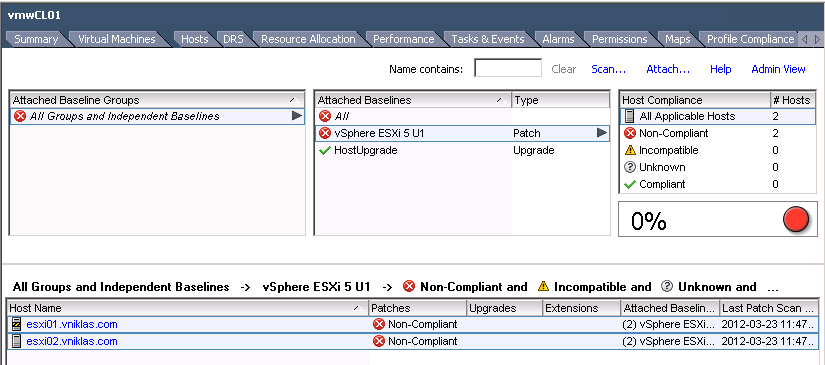
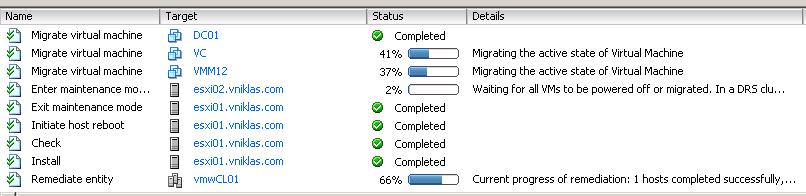
And here are some screenshots of it running,
One host successfully updated and the remediate migrates the VM´s and start with the other host.
Finally the hosts in the cluster are updated.
I have used some of the code from Jonathan Medd´s post on upgrading from 4.0->4.1 to create my script.